AI coaching report
The part that turns numbers into words: a coaching report written in Rioplatense Spanish, built from the metrics already calculated in the Analysis section.
What the AI does and doesn't do
This is worth understanding because it changes how much you trust the report: the AI never sees the raw telemetry (the thousands of GPS points, speed samples, etc.). It sees the metrics the app already calculated in the Analysis section — sector times, corner speeds, braking consistency, friction circle, cumulative delta.
Working from that already-summarized data, the AI writes a text interpretation: what's good, what's weak, and what to try next session.
Appreciation level
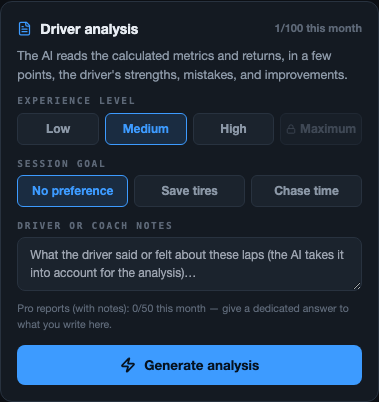
Before generating the report, you pick how technical and demanding the analysis should be:
| Level | When to use it |
|---|---|
| Low | New drivers or entry-level categories — simple language, focused on 1-2 concrete things so it doesn't overwhelm |
| Medium | Experienced drivers who already understand the basic concepts of driving |
| High | Advanced or competition drivers — detailed technical analysis, no simplifying |
| 🔒 Maximum | The most demanding level, built for competition drivers — still locked for every account while it's validated against real sessions |
Session goal
You tell the AI which criteria to prioritize its recommendations by:
- Save the tires — the report will value smooth, consistent driving over the last tenth, useful in long sessions or with limited tires
- Chase time — prioritizes pure performance, even if that means driving closer to the limit
- No preference — balanced analysis, without leaning toward either criterion
Note from the rider or coach
This is the field that changes the report's quality the most. It's free text where you give context the numbers can't show.
| Notes that work well | Notes that don't add much |
|---|---|
| "Coming back from a wrist injury, avoid pushing the front end too hard" | "Do well" / "Improve" |
| "First time at this track, prioritize lines over time" | "Everything" (without specifying anything) |
| "Coming from another category with a bigger engine, watch out for overconfidence under braking" | Leaving the field blank when there's relevant context to give |
Training plan goals
If the driver has goals set up in the Team tab (for example, "work on corner 3 braking"), those goals get folded into the report on their own — no need to repeat them in the note. The AI takes them into account when building its conclusions, so the report stays connected to what the driver has been working on session after session.
Generate the analysis
With the level, the goal and the note (optional) set, you tap Generate analysis. The process takes a few seconds — it needs an internet connection because this is the step that actually calls the AI.
If the report didn't help
If the result comes out generic or misses what you were looking for, the most effective move is to regenerate it with a more specific note, instead of just running it again as-is. The more precise the context you give it, the more useful the report turns out.
Copy, download image and share
Once it's generated, you have three ways to take the report with you:
- Copy the text to paste it wherever you want
- Download as an image, ready to send
- Send — uses your phone's native share sheet (on Android/iOS, WhatsApp shows up among the options)

Coach's final note
After the AI-generated report, the coach can add their own final comment — a human layer on top of the automatic analysis, to wrap up with a personal note or correct something specific the AI didn't catch.
Monthly report limit
Depending on the account's plan, there may be a limit on how many reports you can generate per month. If you hit it, the app will tell you how many you have left and when it renews. You can check your current usage under Account → Plan and usage.
Pro reports (the ones with a note, see above) have their own monthly quota, separate from the general limit — it shows as "Pro reports (with notes): X/Y this month" below the Generate analysis button.
Report history — the Reports tab
Every report you generate is saved on its own in the Reports tab (up top, between Stats and Guide) — you don't have to do anything to archive them. The list shows the last 100 reports; if you generate more, the older ones stop appearing in the list (they aren't deleted).
Each row shows the driver, which laps were compared (for example "V8 vs V7"), the appreciation level it was generated with ("Low", "Medium", "High"), whether it had a note (a "with notes" badge), and the track with date and time. If the session had no driver assigned at the time, it shows as "No driver assigned".
You tap a row and the report expands right there, in full, with its wins, mistakes and improvements sections — just like when you generated it. Tap again to collapse it. Each report also has a Delete report button in case you want to remove it from the history.