Replay
Watch the lap "run" on the track map, like a sim racing replay, with the channels moving live.
Requirements
Replay needs the session to have GPS. If your logger didn't record position (a dash with no GPS module, for example), this tab won't have data to show — the rest of the app works the same. You also need to have a reference lap and a compared lap picked, the same ones you use in Analysis.
The map
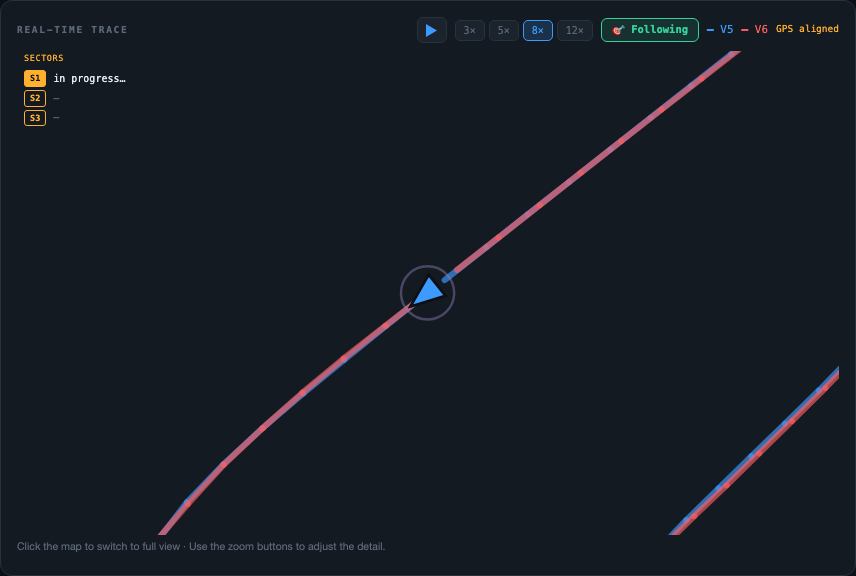
Shows the reference and compared laps as two triangles moving over the layout — blue for the reference, red for the compared — one behind the other depending on who's gaining ground at each instant. The "GPS aligned" badge confirms both laps could be synced well by position, so the run looks coherent even though the lap times are different.
- Following / Full view — a button toggles between the camera chasing the karts automatically, or staying fixed showing the whole track
- Zoom — 3×, 5×, 8× and 12×, to go from the full track down to a corner's detail
- Jump to a corner — click any corner's number on the map and the replay jumps straight to that point
- Back to following — the 🎯 button takes you back to automatic mode if you drifted off by moving the camera yourself
In the top-left corner, the "Sectors" box shows each one's live status as playback runs: "in progress…" for the one you're currently going through, the time already set for the ones you completed, and "—" for the ones that haven't started yet.
Exact on-track comparison
During replay the two karts are never at the same point of the track at the same time — one is always ahead of the other depending on who's gaining ground up to that point. If you need to compare them at the same meter (not the same instant), tap either kart's arrow on the map.
A panel opens with both karts' data at that exact point of the track:
- Up to 3 channels at once, picked with the buttons at the top of the panel
- The time delta at that meter — who got there first, and by how much
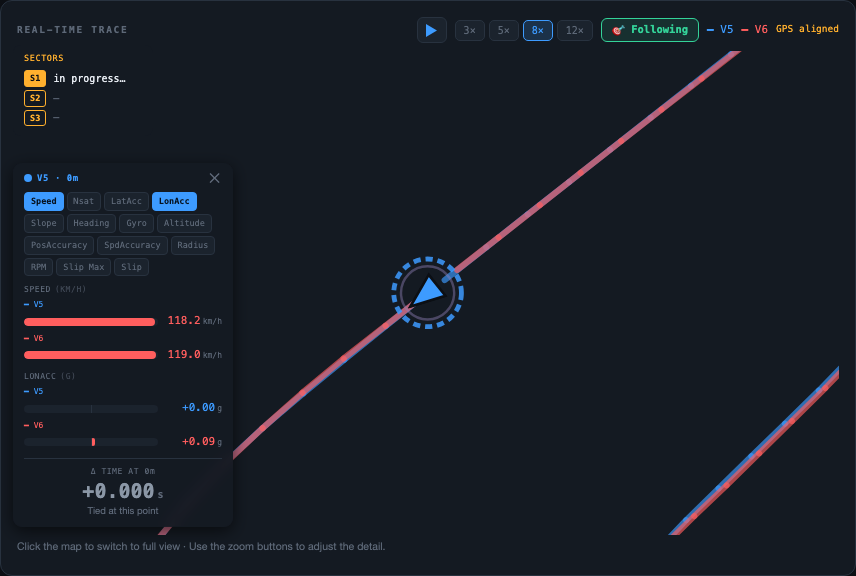
Tap the other kart's arrow to re-center the comparison on its position — the dashed ring around the active arrow shows which one is being used as the position reference. To close the panel tap the ✕; it also closes on its own if you change the reference or compared lap.
Playback controls
Below the map (or to the side, depending on screen size) is the whole playback control bar:
- Reset / Play — on the left, restart and start/pause playback
- Speed — 0.25×, 0.5×, 1×, 2× and 4×, to go from slow motion to fast forward
- Trace with times — shows the current time and the lap's total time (for example
0:00.410to0:49.786) and the total distance in meters; you drag directly on the trace to jump to any point
Above the trace is "Limits", where you manage this replay's sector cuts:
- + Sector — adds a new limit
- A sector's chip (e.g. "S2 ✕") — tap the ✕ to delete that cut
- Drag — each cut can be moved by dragging its marker directly on the trace, to adjust exactly where each sector starts and ends

Live channels panel
Next to the map, this panel translates what you're watching run into numbers and charts:
- Speedometers — two big gauges with each lap's instantaneous speed (blue reference, red compared)
- Forces and state — each lap's lateral and longitudinal acceleration at this exact instant, with a label for what the kart is doing there (Accelerating, Braking, Cornering, Straight)
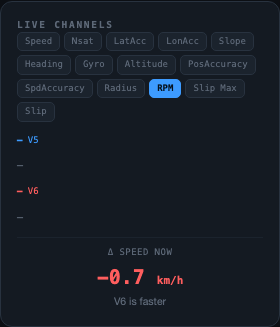
- Live channels — the same channel set as Analysis (Speed, Nsat, LatAcc, LonAcc, Slope, Heading, Gyro, Altitude, PosAccuracy, SpdAccuracy, Radius, RPM, Slip): pick one and see its live value for both laps as the replay runs
- Live delta — at the very bottom, how much difference there is right now in the chosen channel, and which of the two laps is ahead at this moment