Managing drivers & seats
How the app recognizes which driver each file belongs to, and how to manage your account's driver list.
Automatic detection on upload
When you upload a file, the app tries to recognize the driver by the name the CSV carries (if it has one) against your list of registered drivers — checking both the official name and any loaded alias. If it finds a match, it assigns the session directly without asking you anything.
If it doesn't find a match (a new driver, or the file has the name written differently), a modal shows up to resolve it before the session is saved.
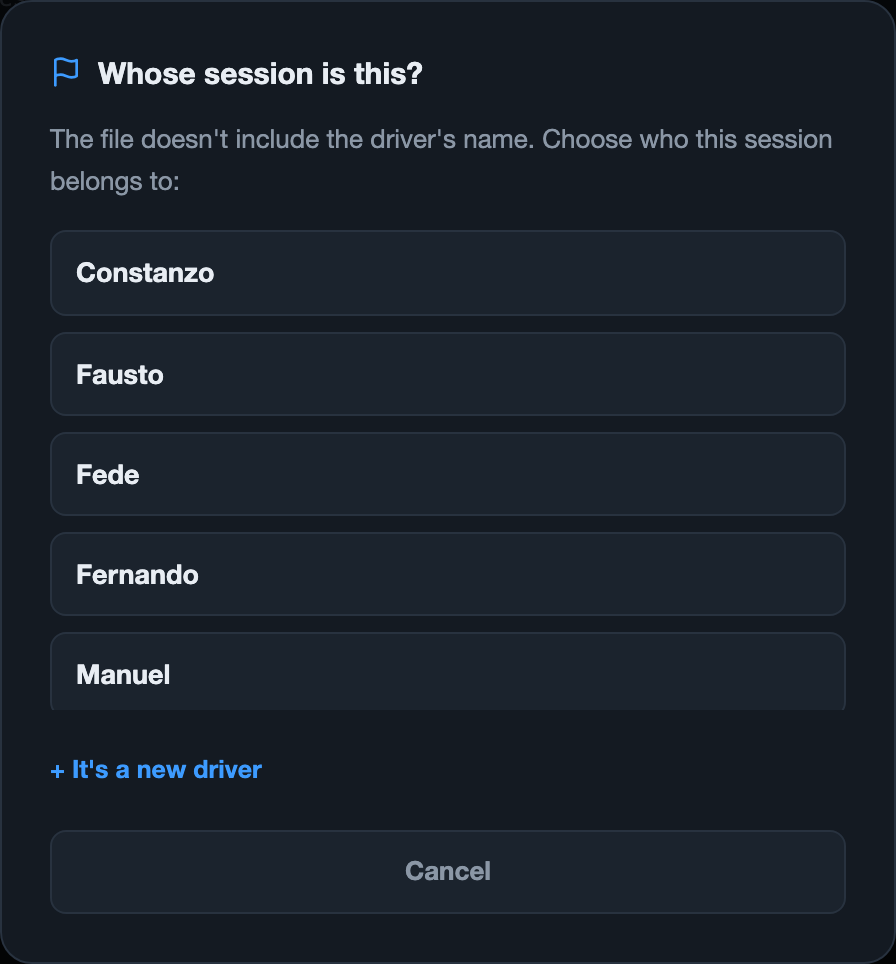
Pick an already-registered driver
If you already have drivers loaded, the modal starts by showing you the list to pick from with one click — built for the cases where the logger doesn't send a name (RaceStudio3 and Unipro don't include one) or sends a minor variant (capitalization, spacing).
Register a new driver
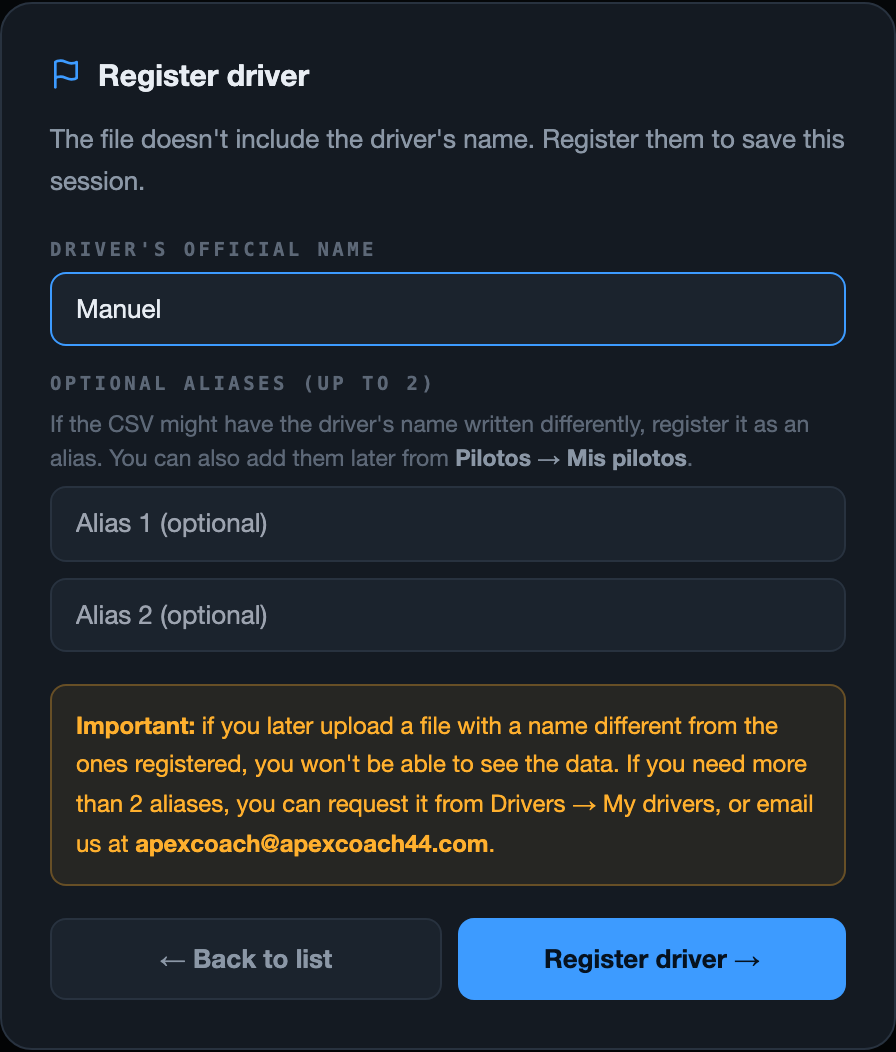
If this is the first time you're seeing this driver, tap "It's a new driver" (or you land directly in this mode if you don't have any driver loaded yet). You fill in:
- Official name — required
- Up to 2 optional aliases — other forms this driver's name might show up as in a CSV
Aliases — alternative names for the same driver
An alias handles the case of a driver whose name shows up differently depending on the software or dash used (for example "Juan Pérez" on one logger and "J. Perez" on another). Each driver can have up to 2 aliases loaded directly, with no approval needed:
- When you register the driver for the first time (in the same modal)
- Afterward, from Drivers → My drivers
If you need a third alias or more, it has to be requested: you fill in which alias you need and it stays pending until an admin approves or denies it. You get notified as soon as it's resolved.
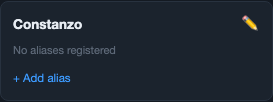
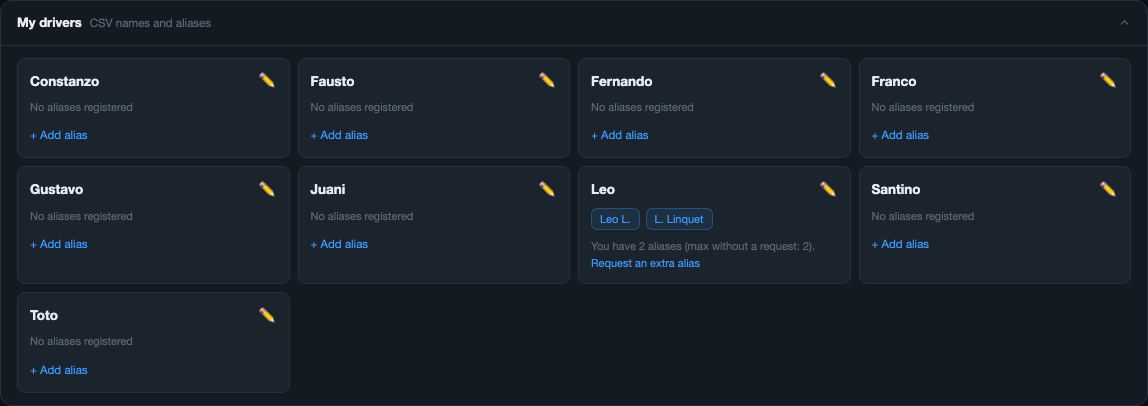
"My drivers" panel (under Drivers)
This is the panel where you manage your day-to-day list of active drivers. For each driver you can:
- Rename them — with the pencil icon next to the name
- View and manage their aliases — add up to the direct max, or request more
"My tracks" panel (under Drivers)
Right below "My drivers", in the same tab, is the My tracks panel — the list of every track the app recognized when you loaded your files. Just like with drivers, the app detects them on its own from the telemetry; this panel is for tidying them up if needed.
For each track you can:
- Rename it — with the pencil icon next to the name. Handy if the logger saved it with an unclear name or you want to unify how it appears.
- Delete it — with the ✕. Heads up: deleting a track also deletes its corner calibration. And there's a safeguard: you can't delete a track that has saved sessions — if you try, the app tells you how many sessions it has and asks you to delete those first. That way you don't lose history by accident.